I loved this idea from Mrs. Richardson's 2nd grade class at Bitterroot Elementary, and wanted to share with you. She uses a Mr. Potatohead to motivate her students. When they receive a certain number of points, they get to choose something new to add to Mr. Potatohead (she has a bucket of his "accessories"). As soon as Mr. Potatohead is put together, they will get a class prize. I thought this was such a cute, creative idea!
I think this would also be fun to use with the digital portfolio tool Seesaw. It could be a student job each day to take a picture of Mr. Potatohead and write/tell about him and how close he is to being "put together" so they can earn their class prize!
Sunday, December 6, 2015
Saturday, December 5, 2015
Pic Collage Kids + Google Slides
Mrs. Avery's 2nd graders made this sweet project for their student teacher Ms. Murphy, whose last day was Friday. The students each created a Pic Collage for Ms. Murphy on their iPads, then logged into their D2 accounts and emailed the collages to Mrs. Avery. She put them into a Google Slides show which she then downloaded as a PDF (Open "File", "Download As" and select "PDF") and printed to make a book. Such an awesome idea! (Click the image to view the PDF file).
Pic Collage Kids is a free app with so many uses! I love using as a fun way for kids to share information they have learned through inquiry projects, or to tell about themselves, make math collages, etc. Let me know if you want to try it and need some help getting started!
Thursday, December 3, 2015
Awesome Ideas for Using Seesaw
So, pretty soon I may need a whole new page on my blog just for awesome Seesaw examples I am finding in schools around our district! Here are a few from Mrs. Chase's 2nd grade. So excited to see teachers and students using technology in this way to authentically reflect on and share their learning! And I love that Seesaw makes it so super easy to do so!
Labels:
BPS classrooms,
ipad apps,
ipads,
seesaw,
tech in the classroom
Wednesday, December 2, 2015
App Smashing in Mrs. Bishop's Kindergarten!
Love this app smash from Mrs. Bishop's kindergarten! Using the Feltboard app, students chose the 4 square graphic organizer background, and built sight words (one in each square). After they built their words, if they had extra time they could add some fun "embellishments" with the Feltboard pieces.
The students then uploaded their creations to Seesaw from their camera rolls, and recorded themselves reading the words. So simple and powerful! Great job, Bishop Kinders! You are superstars!
Labels:
BPS classrooms,
feltboard,
ipad apps,
ipads,
literacy,
sight words
Super Hero Math
LOVE this activity from Mrs. Bishop's kindergarten! Using Lesson 5.3 of the Go Math! curriculum, her students practiced solving story problems by acting them out using a fun app called Superhero Comic Book Maker. This app is $1.99, but allows students to move monster and superhero stickers while telling stories. This lends itself well to practicing and internalizing both literacy and math concepts.
Mrs. Bishop had her students create videos of story problems using the app, then share the videos into their digital learning journals on Seesaw. Mrs. Bishop says her students loved making the videos (and did well!), but they are also enjoying watching each other's videos and solving the problems that their friends created. Such an awesome idea! Way to go, Bishop Kinders!
Labels:
BPS classrooms,
ipad apps,
ipads,
math,
seesaw,
superhero app
Tuesday, December 1, 2015
Dear Santa
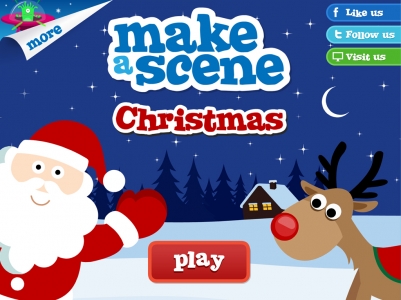
I visited several classrooms today and used the app Make a Scene: Christmas for a variety of projects. The kids absolutely loved this app, and worked so hard on the learning activities! The app is $2.99 - you can view it in iTunes by clicking the image below.
In a couple first grade classrooms, we used the app to create illustrations for some ebooks about Christmas. We introduced the Christmas app, and asked the students to create 3 illustrations; 1 for the book cover and 2 that they could write sentences about. We showed students how to save the illustrations to their camera rolls by clicking the three lines (we like to call these the "Liney Lines" in 2nd grade) in the upper lefthand corner to open the settings, then clicking "snapshot".
Then, they opened the app Book Creator to begin making the books. When the books are finished, I will upload some examples. Using Book Creator, students can add a title and type sentences to go with each of their illustrations. When they are done with their books, they can add audio of themselves reading the words they wrote. After the audio is added, students can export the book as an ePub for reading in iBooks, or export as a video and post to their Seesaw learning journals. Super cool!
For more info on Book Creator, you can check some of my previous posts (search for "book creator") or you can view a tutorial by clicking here.
Another project idea that turned out really cool was an app smash of Make a Scene: Christmas and Tellagami. Tellagami is a free app that allows students to create an avatar that will talk and share information and student learning. Students love the creativity of customizing the avatar, and it's fun for them to share information by making the avatar "talk". The paid Edu version is $4.99 and gives more customization options, plus it allows students to type the text they would like the avatar to say (instead of record using the microphone).
In Mrs. Chase's 2nd grade, we began by using the Make a Scene: Christmas app to create a background for the Tellagami. They created a fun Christmas scene, and then saved to the camera roll on the iPad.
Next, they opened the app Tellagami and I gave them a quick "how to" for customizing their avatars, or "gamis". You can see the options (character, emotion, background) in the photo below. In the background area, they are able to upload a photo from the camera roll of the iPad, so the 2nd graders uploaded the Christmas backgrounds they had created.
They then returned to the home screen by clicking "back" and clicked on "message" to record what they would like for Christmas.
When they finished, they clicked "share" and then "save" - Tellagami creates a short video that is then saved to the camera roll of the iPad. This 2nd grade class uses Seesaw for digital portfolios, so the students were able to then login to their Seesaw accounts and upload the Tellagami videos using "camera roll" from Seesaw. Students were asked to use the text feature on Seesaw to type what they would like for Christmas.
The students did an awesome job on this project, and the end result was so great! Here is one example - let me know if you have questions or would like help getting started doing this project in your own classroom!
Labels:
book creator,
BPS classrooms,
christmas,
ipad apps,
ipads,
seesaw,
tellagami
Monday, November 30, 2015
Cyber Monday Sale on Reflector 2!
Anyone who needs to get the update to Reflector, Reflector 2, today is your day! There is a 30% off sale for Cyber Monday. Click the image below for details. This makes Reflector 2 $10.49 for a single license, and $44.09 for a 5-pack.
REMEMBER: If you are a PLTW school, the district has purchased a Reflector 2 license for you already! You should be able to download by accessing Self Service on your computer - let me know if you have trouble, or ask your school tech!
Math Antics - free videos!
During Geek in the House at Bitterroot today, I learned of a cool tool from Mr. White called Math Antics. This site has a paid subscription fee for exercises and activities, but they offer many fun, engaging videos for free. Looks like it's geared more toward intermediate and middle school grades, but definitely worth checking out!
Labels:
geek in the house,
math,
tech in the classroom,
tech tools,
videos
Friday, November 20, 2015
New App: Make a Scene Christmas
Brrr! Snow is finally here ... and Christmas is just around the corner. I wanted to share a new app discovery: Make a Scene: Christmas. This app is $2.99, but has a lot of possibility! I think it would be incredibly engaging for students to be able to use this app to create Christmas-themed drawings and illustrations that they could then load into a portfolio app like Seesaw, or any other app where they could write about their illustration. It could also be really fun for students to use while creating or solving math problems. As I use this app in classrooms, I will share ideas for meaningfully integrating it into your curriculum!
Labels:
christmas,
ipad apps,
ipads,
tech in the classroom
Wednesday, November 18, 2015
Building Words Using the Stop Motion App
Stop Motion is a really fun free app that allows students to create their own stop motion videos. There are so many applications for this app! I previously shared an activity from Mrs. Bishop's kindergarten where the students made videos showing numerals and the correct number of counters beside each number.
Yesterday I worked with Mrs. Davey's first grade to make videos of them building CVC words using the app. Mrs. Caskey already had the following supplies that we could borrow, which were super helpful for this activity:
1) tag board cut into squares so the students had a work mat
2) baggies of letters (these could be cardboard letters, magnetic letters, etc)
3) a piece of paper in each baggie showing students which letters they will use and which words they will build (see example photo below)
Mrs. Caskey has students use a JuStand to hold the camera steady for the photos. We had students work in partners, with one person acting as the photographer and one person moving the letters onto the board. With each word, they were to switch jobs.
Mrs. Davey and I introduced this activity using the Reflector app and showing them an example. It is important to stress the following:
1) Picture taker, wait for your partner's hand to move before taking the photo
2) TAKE LOTS OF PHOTOS - the more pictures, the better your movie will be!
3) Once you have built a word, take 5 photos of that word before making the next word
The other thing that was difficult is that they didn't have to "restart" each time they made a word. For example, if the first word was cat and the next word was bat, the students should only have to move out the letter "c" and replace with "b". The next word might be bit, so students would only have to move out the "a" and replace with an "i". Get it?!
If you have questions about this, or would like me to come help you get started, please let me know. tracipiltz.youcanbook.me It was a really fun activity that the students LOVED. Great for cooperation and communication skills! These videos could then easily be saved to the iPad camera roll and shared out using the students' digital portfolio, Seesaw. Wahoo!
Here are some examples: (PLEASE NOTE: They are not perfect! That's okay!! Don't be afraid to try something new!)
Yesterday I worked with Mrs. Davey's first grade to make videos of them building CVC words using the app. Mrs. Caskey already had the following supplies that we could borrow, which were super helpful for this activity:
1) tag board cut into squares so the students had a work mat
2) baggies of letters (these could be cardboard letters, magnetic letters, etc)
3) a piece of paper in each baggie showing students which letters they will use and which words they will build (see example photo below)
Mrs. Caskey has students use a JuStand to hold the camera steady for the photos. We had students work in partners, with one person acting as the photographer and one person moving the letters onto the board. With each word, they were to switch jobs.
Mrs. Davey and I introduced this activity using the Reflector app and showing them an example. It is important to stress the following:
1) Picture taker, wait for your partner's hand to move before taking the photo
2) TAKE LOTS OF PHOTOS - the more pictures, the better your movie will be!
3) Once you have built a word, take 5 photos of that word before making the next word
The other thing that was difficult is that they didn't have to "restart" each time they made a word. For example, if the first word was cat and the next word was bat, the students should only have to move out the letter "c" and replace with "b". The next word might be bit, so students would only have to move out the "a" and replace with an "i". Get it?!
If you have questions about this, or would like me to come help you get started, please let me know. tracipiltz.youcanbook.me It was a really fun activity that the students LOVED. Great for cooperation and communication skills! These videos could then easily be saved to the iPad camera roll and shared out using the students' digital portfolio, Seesaw. Wahoo!
Here are some examples: (PLEASE NOTE: They are not perfect! That's okay!! Don't be afraid to try something new!)
Labels:
CVC words,
ipad apps,
literacy,
stop motion,
tech in the classroom
Responding with the Backchannel
I absolutely love reading Kristi Meeuwse's blog and getting ideas from her 1:1 kindergarten classroom. Basically, anything she posts, I will try! So when she wrote about using the backchannel in kindergarten, I was interested. I had no idea what a backchannel is (to be honest, I'm still not 100% sure, LOL) but I loved the concept of giving all students a voice by letting them contribute and respond to a question using this tool.
So, I called (okay, texted) my BFF Mrs. Bishop and asked if she'd mind letting me into her classroom to come try this. How could she say "no"?! :)
I decided to begin using this tool by "interactive typing" (This is a thing. I'm sure of it.) the question together, and making sure it had a "yes" or "no" answer. In kindergarten, many times we would take surveys, where we would interactive write a question on chart paper, and the kids would then share the pen to record their answers. In my mind, this backchannel could be used in the same way, but would allow students to respond digitally, as well as free up that class time taken when each student has to take a turn with the pen. They could respond all at once using 1:1 devices or a lab, or respond throughout the day when there was time. I would not do this ALL the time - I am not saying don't EVER write these on chart paper ever again. Just saying, it could be a good way to "switch it up" and introduce a new way of doing something every now and then.
I also love the potential toward moving to "meatier" questions as students can write and type more, as well as letting students create their own surveys (they write the questions) that their friends can answer.
I used the tool Mrs. Meeuwse used in her classroom, Today's Meet. It's free and really easy to use. Once I created the room, I used the URL to make a QR code. When we used it in Mrs. Bishop's class, I reflected my iPad, and together we typed the question "Do you like pumpkin pie?" The students then scanned the QR code to enter the room, then all they had to type was their names and their answer ("yes" or "no"). Super easy and cool! Let me know what you think and how you could see using this tool in your own classroom!
So, I called (okay, texted) my BFF Mrs. Bishop and asked if she'd mind letting me into her classroom to come try this. How could she say "no"?! :)
I decided to begin using this tool by "interactive typing" (This is a thing. I'm sure of it.) the question together, and making sure it had a "yes" or "no" answer. In kindergarten, many times we would take surveys, where we would interactive write a question on chart paper, and the kids would then share the pen to record their answers. In my mind, this backchannel could be used in the same way, but would allow students to respond digitally, as well as free up that class time taken when each student has to take a turn with the pen. They could respond all at once using 1:1 devices or a lab, or respond throughout the day when there was time. I would not do this ALL the time - I am not saying don't EVER write these on chart paper ever again. Just saying, it could be a good way to "switch it up" and introduce a new way of doing something every now and then.
I also love the potential toward moving to "meatier" questions as students can write and type more, as well as letting students create their own surveys (they write the questions) that their friends can answer.
I used the tool Mrs. Meeuwse used in her classroom, Today's Meet. It's free and really easy to use. Once I created the room, I used the URL to make a QR code. When we used it in Mrs. Bishop's class, I reflected my iPad, and together we typed the question "Do you like pumpkin pie?" The students then scanned the QR code to enter the room, then all they had to type was their names and their answer ("yes" or "no"). Super easy and cool! Let me know what you think and how you could see using this tool in your own classroom!
Tuesday, November 17, 2015
Digitizing Books with Adobe Voice
I tried my first digital book today using the free app Adobe Voice. This worked great, I just need to work on my photo taking (I think next time I will use a JuStand) and timing (so the photos have time to zoom out after I read the page and the kids can see the words). Otherwise, this app worked really easily for digitizing a favorite classroom story that could be shown to students whole group, or read during center time.
I also created a QR code for the book, so students could scan from a device to hear the story read to them. If you'd like help creating your own digital books, let me know! tracipiltz.youcanbook.me
Friday, November 13, 2015
Coding in the Classroom
Why teach your kids to code? Why the heck not?! Coding is an awesome way to teach critical thinking and problem solving skills. Jobs involving coding also rank very high on the list of Best Jobs of 2015, and this number is expected to grow. Becoming fluent in the language of code will allow students to pursue jobs in a fast-growing and well-paying field. Plus ... it can be really fun!
Code.org is an awesome resource for any teacher wanting to get started in this field. I introduced my kindergartners to coding by using the free apps Kodable and Daisy the Dinosaur. Many of my kids absolutely loved this activity, and when they had "Free App Friday" time, they would always choose to practice coding with one of these apps. Some of them became "experts" (definitely beyond my skill level, LOL) and would help one another when they got into trickier coding scenarios.
I absolutely love this article by Kristi Meeuwse about coding in kindergarten. She gives some awesome examples and even shows how her kids code "offline", like this image below.
Edudemic has a great article about coding in the classroom, along with some videos ad resources. Click here to read Coding in the Classroom: 16 Top Resources. Hour of Code happens during the week of December 7-13th, and I would encourage you to take this time to let your kids (and yourself!) dabble in some coding. You may find that you and your kids love it, and that it will allow some of your kids to really shine!
Labels:
coding,
hour of code,
ipad apps,
tech in the classroom
Wednesday, November 11, 2015
Attention K-3 Teachers: Book Creator Workshop for iPads
My goal is to host a workshop each month that will allow teachers to explore a particular app or tool in depth. Each workshop will be two hours long from 3:00-5:00pm, which will allow teachers to collect OPI credit. The workshops will be geared towards K-3 teachers and examples will be from primary classrooms. Intermediate teachers are more than welcome to join us after their kids are dismissed (you just won't be able to collect OPI credit, as you won't be present for two hours). If you can't stay until 5:00pm you are still welcome to come and work - you just won't be able to collect OPI credit.
The first workshop will be about the app Book Creator. It will be held on Wednesday, December 9th from 3-5pm at Lincoln Center, room 301. Teachers will learn how to use this app for both student-created eBooks and teacher-created eBooks, and learn how to share their creations. Come with an iPad! You can download a free version of Book Creator to try it out. The full version is $4.99.
If you have any questions, please email piltzt@billingsschools.org. To sign up, complete the form below:
Labels:
book creator,
ipads,
tech in the classroom,
workshops
Subscribe to:
Posts (Atom)