

Showing posts with label tech tips. Show all posts
Showing posts with label tech tips. Show all posts
Saturday, September 19, 2020

Saturday, February 8, 2020
Flipgrid Video Tutorials
This Flipgrid collection continues to grow with lots of tech-y tips and ideas! Check it out by clicking the image below. One video tutorial for each week of Weekly Tech-y News!

Sunday, March 24, 2019

Sunday, March 4, 2018

Sunday, October 1, 2017

Wednesday, November 30, 2016
Free Christmas Themed Online Timers!

Spice up your winter activities with these super fun, free online timers that Julie Tallman discovered. Visit www.online-stopwatch.com/christmas/ where you’ll find an Elf Race, Snowman Race & Growing Trees timer, as well as a Christmas countdown. Super fun way to moderate and time activities in your classroom during the holidays.
Friday, November 18, 2016
Update Reflector 2 to Reflect Your iOS 10 Device!

Monday, September 12, 2016

Tuesday, August 30, 2016
Good Styluses to Use with Kids

Monday, August 22, 2016
Sign Up for My Weekly Email Newsletter!
If you'd like some tech-y awesomeness delivered to your inbox weekly, fill out the form below. You'll get an email each week that highlights a favorite tool, idea or tip, and links to blog posts with lesson ideas and examples from BPS classrooms! IF YOU RECEIVED THIS EMAIL LAST YEAR, YOU DON'T HAVE TO SIGN UP AGAIN. You'll keep receiving the emails until you tell me STOP! :)
Thursday, February 11, 2016
iPad Workshop 2/17/16 3:00-5:00pm
Sign up if you're interested! There is OPI credit available. Email piltzt@billingsschools.org with any questions.
Monday, February 8, 2016
Tech Icon Posters
So, I know I'm a nerd, but I am absolutely in love with these alphabet posters created by Erin Flanagan! There are GAFE and iPad posters available for purchase ($3) from her TpT store, Erintegration. (Seriously, that's clever, right?) I think they are such an awesome way to promote digital literacy in your classroom, and familiarize your students with the icons and logos they'll be using consistently when working with technology.
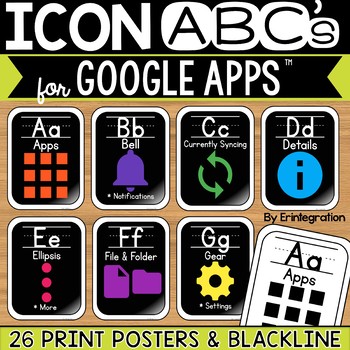
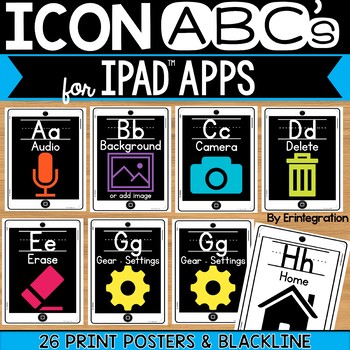
P.S. They come in different fonts, for those of you who are cursive and D'Nealian kind of folks!
Monday, January 25, 2016
Another Awesome Post from Kristi Meeuwse, ADE - Digital Reading Resources
I absolutely love iTeachwithiPads.net, written by Kristi Meeuwse. She is a kindergarten teacher in a 1:1 iPad classroom, and an Apple Distinguished Educator. She has so many wonderful ways of using iPads in her classroom to enhance student learning, and create a student-centered classroom where true personalized learning occurs. I encourage you to take the time to read through her posts.
Her latest post features resources for digital reading, which is a question I am asked often. Mrs. Meeuwse provides her students with an amazing collection of reading materials, both digitally andi n traditional print. I really love her idea of adding an icon on the homescreen of your iPad to allow kids to quickly access digital books through the site Unite for Literacy.

Adding an icon to your homescreen is so easy! This will allow students to quickly access websites that you use often, like Moby Max or Xtra Math. Pull up the site using Safari, then click the sharing icon.
 Once the options open, select "Add to home screen" and then select "Add". (You can adjust the name of the item, if you need to.)

Click the image below to read her full blog post. If you have a favorite site you use for digital reading resources, please share in the comments or email me!

Her latest post features resources for digital reading, which is a question I am asked often. Mrs. Meeuwse provides her students with an amazing collection of reading materials, both digitally andi n traditional print. I really love her idea of adding an icon on the homescreen of your iPad to allow kids to quickly access digital books through the site Unite for Literacy.
Adding an icon to your homescreen is so easy! This will allow students to quickly access websites that you use often, like Moby Max or Xtra Math. Pull up the site using Safari, then click the sharing icon.


Click the image below to read her full blog post. If you have a favorite site you use for digital reading resources, please share in the comments or email me!
Tuesday, October 20, 2015
Conference Scheduling Made Easy! Awesome Idea from a BPS Classroom!
Mrs. Schopp, a 2nd grade teacher at Newman Elementary, uses technology to make conference scheduling easier for her and the parents in her room. By utilizing a form, parents can sign up for conferences online, cutting down on back and forth paperwork between Mrs. Schopp and the parents. (Mrs. Schopp does still send home a paper note for students without access to the internet. However, with most of her parents utilizing the online form, her paperwork is cut significantly.) You could do this a couple of ways.
Mrs. Schopp has an awesome blog (check it out at http://www.schopptalk.com/) that she has created using Weebly. When Mrs. Schopp created her conference form, she used a tool directly from Weebly. It looks like this:
 Click the image or click here to view the full page on Mrs. Schopp's blog.
You could also use Google Forms to create the form, providing the available times and allowing each time to only be chosen once. This same method would work great for any volunteer needs you have in your classroom, as well! Brilliant!
Mrs. Schopp also utilizes the tool Remind to generate parent traffic to this conference form. If you've never used Remind, it's a wonderfully easy, quick tool for sending out messages to parents that are like text messages (without sharing your personal contact information). It's free and it's great! Click the link above to learn more about Remind.
Mrs. Schopp has an awesome blog (check it out at http://www.schopptalk.com/) that she has created using Weebly. When Mrs. Schopp created her conference form, she used a tool directly from Weebly. It looks like this:
You could also use Google Forms to create the form, providing the available times and allowing each time to only be chosen once. This same method would work great for any volunteer needs you have in your classroom, as well! Brilliant!
Mrs. Schopp also utilizes the tool Remind to generate parent traffic to this conference form. If you've never used Remind, it's a wonderfully easy, quick tool for sending out messages to parents that are like text messages (without sharing your personal contact information). It's free and it's great! Click the link above to learn more about Remind.
Wednesday, September 16, 2015
Kidblog in 1st grade
Mr. Anderson's first graders are off to a great start using Kidblog as a digital portfolio of their work. We introduced Kidblog whole group (this can be done using iPads, Chromebooks or Macbooks) and he has since introduced Kidblog into literacy centers. Students work on writing (creating a story, posting reflections after a Lead 21 differentiated group lesson, etc) and post to Kidblog at one of his iPad centers. At another iPad center, they will engage in word work using apps like Writing Wizard, Word Wizard, Sight Word Ninja and then take screenshots of their work and post to Kidblog. This will build their digital portfolio, which can then be shared with parents, as well as classroom connections (other classes using Kidblog). It also creates a really helpful portfolio of student work that Mr. Anderson will be able to use as he is analyzing student progress and growth.
Yay, Kidblog! Great job, Mr. Golden Apple and your amazing Golden Firsties! :)
Here are a couple of examples from his students:

 There is a previous post on my blog about Getting Started with Kidblog, if you're interested. You can also check the Kidblog website resources for some great tutorials. You can also invite me in to help you get started - I love using this tool and I am happy to help classrooms incorporate it into their classrooms. It is also nice having an extra person in the room the first couple of times you are walking through this process with your students!
Yay, Kidblog! Great job, Mr. Golden Apple and your amazing Golden Firsties! :)
Here are a couple of examples from his students:


Monday, September 14, 2015
Constitution Day is September 17th!
A wonderful 2nd grade teacher asked if I knew of any fun ways to integrate technology into Constitution Day learning. I had fun brainstorming a few ideas for her, and I thought I would share them with you all.
There is a good, short video on Time for Kids that you could show your students for some background knowledge.
I really like this idea:

How cute is that? It would be great if you had a copy of the book We The Kids by David Catrow. It would be fun to start this as a collaborative document, using a tool like Padlet. Have each student contribute their idea of what it means to be a good citizen. Then transfer their ideas to paper and have each student sign the "Class Constitution". So cute!
I also found this website with some good resources. I doubt it will work from their iPads, but it could be fun to share bits of it whole group. Lots of information. If students can work independently from MacBooks or ChromeBooks, they could read the information and take the accompanying quizzes.

This is simply made from cutting pieces of construction paper and gluing to a white piece of construction paper, then adding white fingerprint "stars". You could then have students take a picture of the flag with an iPad (or a picture of each of them holding their flags), and upload into an app like Skitch , Pic Collage or Educreations - anywhere they could add text to their picture and label it or write what they think a good citizen is.

There is a good, short video on Time for Kids that you could show your students for some background knowledge.
I really like this idea:
How cute is that? It would be great if you had a copy of the book We The Kids by David Catrow. It would be fun to start this as a collaborative document, using a tool like Padlet. Have each student contribute their idea of what it means to be a good citizen. Then transfer their ideas to paper and have each student sign the "Class Constitution". So cute!
I also found this website with some good resources. I doubt it will work from their iPads, but it could be fun to share bits of it whole group. Lots of information. If students can work independently from MacBooks or ChromeBooks, they could read the information and take the accompanying quizzes.
It would also be cute to have them do some kind of art project (maybe make a flag like this one):
This is simply made from cutting pieces of construction paper and gluing to a white piece of construction paper, then adding white fingerprint "stars". You could then have students take a picture of the flag with an iPad (or a picture of each of them holding their flags), and upload into an app like Skitch , Pic Collage or Educreations - anywhere they could add text to their picture and label it or write what they think a good citizen is.
If you're working from a Chromebook or MacBook (this next idea needs Flash so it won't work on iPads), it would be fun to use the Read, Write, Think Theme Poem creator and have them use the flag outline to create a poem about citizenship or patriotism.
I hope these ideas are helpful, or inspire some other awesome Constitution Day or patriotic lessons. If you try anything in your class, please share with me so we can post examples and ideas on this blog for others to see!
Happy Teaching and Tech-ing!
Great Post Featuring Digital Citizenship Resources
I found this post on the blog Comfortably 2.0, and it lists several fun resources for teaching digital citizenship to your students. The tools listed include books, short videos and websites.

If you search the other blog posts, you'll also see a post Mr. Badura wrote about talking with students, not at students when you have a conversation about digital citizenship.
Thursday, September 10, 2015
Super Centers with iPads - 3 night workshop

The first session of Super iPad Centers is full - click the image to sign up for Session 2 October 21, 28th and November 4th from 3:00-4:00pm. OPI renewal units available.
Wednesday, September 9, 2015
Gimme a Brain Break!
Gimme a break … A BRAIN break! Research shows that taking brain breaks throughout the day facilitates student engagement and learning. There is a wonderful article on this blog explaining brain breaks and why they are effective. One of my favorite ways to incorporate brain breaks into my kindergarten classroom was using GoNoodle!

GoNoodle has tons of FREE activities to help kids focus - you can choose from calming, energizing, interactive games, core aligned activities and more depending on your class needs. Your students pick a “champ” and then earn your class champ points every time they participate. They love this! Here is our class’ champ, Flappy Tuckler.
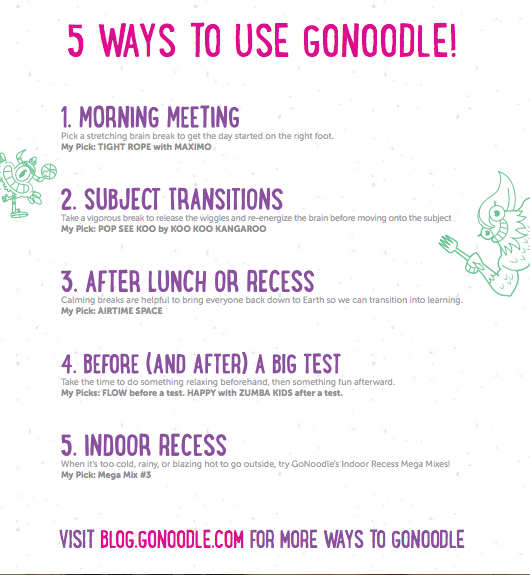
This blog post has tons of ideas on how to incorporate GoNoodle into your classroom. I also love these 5 quick ideas to start reinvigorating your students and squeezing in a few minutes of brain breaks throughout your day.
GoNoodle supports teachers with awesome resources - check out all of these free, fun printables to get your classroom GoNoodle-ified! Ready to check it out yet? If so, visit this link and start GoNoodling!
ClassDojo!
If you’ve never heard of ClassDojo … then you are in for a treat! ClassDojo is an awesome classroom management/communication tool and it’s FREE! ClassDojo allows you to easily engage students by providing immediate feedback and to keep parents in the loop. It is super fun and can be customized to meet your classroom’s needs.
To find out more about ClassDojo, click the image below to watch a short intro video. After watching the video, visit www.classdojo.com and you can quickly and easily set up your teacher account.

ClassDojo supports teachers by providing tools, tips and advice from other teachers on their blog. Check out their Teacher Resources page to download a teacher info sheet, or to read about ways other teachers are using ClassDojo in their classrooms.
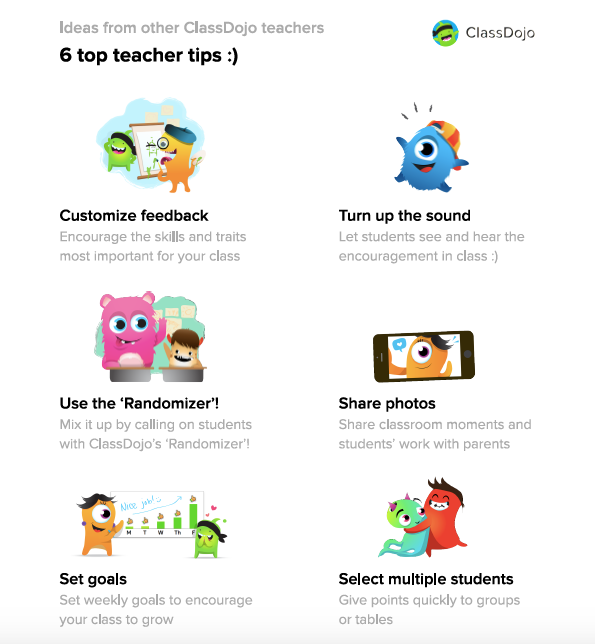
Here are teachers’ top tips for using ClassDojo: (click the image to download the document)
Subscribe to:
Posts (Atom)