A lot of teachers are apprehensive about letting their students write comments on Seesaw. I really love giving students the ability to do this - they LOVE sending and receiving comments, and it is a wonderful way to begin modeling good digital citizenship for our students. In one first grade class I was in, the student said "Can we write compliments to our friends?" and I love this idea that she stumbled upon by accident - referring to comments as compliments and focus on making positive comments on each other's work.
There are some great examples on Twitter (follow @Seesaw, they retweet so many great ideas from teachers using Seesaw in their classrooms!) and this was one of my faves. Use it to help model the process of writing a good, relevant, positive comments.
Have I posted about Seesaw yet? If not, I can't believe that I have waited this long! I think it's safe to say, Seesaw is my new favorite app.
After using Kidblog for the last couple of years in my kindergarten class, I am completely sold on the idea of blogging and creating digital portfolios. Even in primary grades. (If you're not sold, click here to read a wonderful article by Kathy Cassidy about blogging with little kids.) However, after introducing Kidblog to a few teachers this year, I realized that their "update" created some problems with the interface of Kidblog and the "user friendliness" that I used to love. So ... I began searching for solutions.
A colleague in Bozeman suggested Seesaw, so I asked my friend Sally Bishop if I could come try it in her kindergarten class. In 10 minutes, we were sold. This app is terrific and EASY. Kids login using a built-in QR reader and a QR code that is generated for your class. They open to a screen with several options, including drawing, video, photograph and notes. Students can create projects right in the app and upload to their learning journal. They can take photos or upload previously created projects from their camera rolls, and they always have the option to record or add text. The teacher has control over who can comment and "like" student posts, as well as if classmates and parents can see the posts. Seriously, this app is great! Here is an example from Mrs. Bishop's kindergarten, after a bus safety field trip:
Getting started is a piece of cake! Visit their website: web.seesaw.me and create your account. You will create a class and add your students' names, then Seesaw will email you a login poster with QR code.
Older students have the option of creating their own accounts using email accounts - this could be a cool option for students using their D2 apps accounts.
Another thing I love about Seesaw is their teacher resources. I receive emails with project ideas from Seesaw, and the projects are always leveled by grade and/or skill. Their website has a wonderful area for teachers, filled with tutorials. Click here to see the Teacher Resource page.
Have I mentioned that it's FREE?!
I have introduced Seesaw to lots of classes, and I'd be happy to come help you get started, too. Just go to tracipiltz.youcanbook.me to find a time! Here are some examples from Mrs. Davey's first grade. Her students were studying bats, so we started using Seesaw by making a drawing of a bat, then adding a name using the pen tool and a bat fact using the text tool. Students then had to post their drawing to their Seesaw learning journal. They did this in about 30 minutes, and most moved on to posting photos, as well. I am excited for parents to be able to connect to these accounts and see what their students are doing - I think they are going to be as excited about this as I am!
I found this post on the blog Comfortably 2.0, and it lists several fun resources for teaching digital citizenship to your students. The tools listed include books, short videos and websites.
If you search the other blog posts, you'll also see a post Mr. Badura wrote about talking with students, not at students when you have a conversation about digital citizenship.
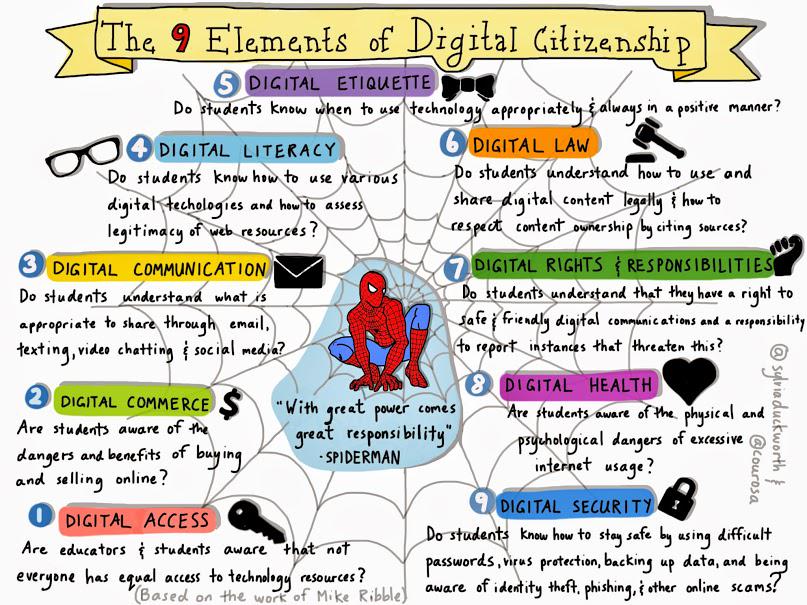
So many teachers are ready to begin using technology in their classrooms, but also want to be sure they are teaching their students to be smart digital citizens. In order to be effective, this should not be a one time lesson, this concept should be embedded throughout the year, teaching and reminding students as they learn new tools and continue working online.
For primary students, I think an excellent place to begin searching for resources is the website NetSmartz. There are tools for educators and parents, as well as a great site for kids, as well. Click the images below to explore these sites.
As I have been out visiting classrooms, I have seen lots of great superhero themes. I saw this FREE digital citizenship poster on Teachers Pay Teachers, and thought it would be a fun way to kick off this conversation with students. Click the image to view and download on TpT.
After discussing good digital practices with my kindergartners, we worked together to interactively write Rules for Our Learning Community. You could also use a tool such as Popplet or Padlet to collaboratively create this list. For an example of this, visit ZigZagging Through Ed & Tech blog. I then distributed an Acceptable Use Policy and had each student sign it, as well as each parent sign it during Open House. The AUP I used can be downloaded for free by clicking the image below. It is from the blog Soaring Through Second.
Nearpod has some great digital citizenship lessons available through Common Sense Education. BPS teachers may want to check with their Library Media Specialists to see if they have these lessons available on Nearpod. Your school's Library Media Specialist is a wonderful resource for teaching digital citizenship. Be sure to partner with him or her to share ideas.
Another favorite resource of mine is this fun video from Disney, featuring The Lion King characters talking about digital citizenship. There are so many fun and engaging videos to use with your students- search and find a favorite!