
Showing posts with label BPS classrooms. Show all posts
Showing posts with label BPS classrooms. Show all posts
Tuesday, December 20, 2016
Silly Santa!
Mrs. Tieszen's first graders were enjoying this hilarious little video when I was in her classroom at Orchard today. It's so funny, I thought I needed to share. Enjoy! :)

Displaying a Visual of Apps
In my kindergarten classroom, I always printed large reproductions of app icons and attached these to my magnetic whiteboard or put into a pocket chart to give students a visual of what apps I wanted them working on at a certain time. I really liked putting them on the magnetic board, so I could also write beside the app any specific instructions (i.e. how many times to that app, what letters or numbers to work on, etc). When I was in Mrs. Elenbaas' room, I noticed she does something similar. It's so simple and easy ... she keeps the apps attached to the top of her whiteboard and drags them onto the main board as she is instructing kids which app to use.


Wednesday, December 14, 2016
Make a Scene Christmas App
Today in 1st grade we used the app Make a Scene: Christmas paired with Seesaw tools to document student learning. The kids loved using this engaging app, and incorporating math and literacy concepts with this app made our learning time together very fun. Enjoy these examples from Mrs. Johnson's 1st grade!

Christmas Breakout Edu for Primary
A huge thanks to Ms. Wanner for letting me cause chaos in her 2nd grade classroom with a fun Christmas Breakout Edu activity! Instead of a traditional locked Breakout box, I brought in a wrapped present and told students that they needed to solve clues in order to open the box.


Tuesday, December 6, 2016
BPS Teachers - get the Word Wonderland App for FREE!

Billings Schools K-2 teachers, you have an opportunity to get the Word Wonderland app from McGraw-Hill for free. This looks like an excellent app for reading and phonics skills in the primary classroom. Deana Elder purchased licenses for this app while it was listed as FREE, so if you'd like it installed on your classroom iPads, please submit a Help Ticket to Deana and ask her to install it on your iPads.
Tuesday, November 29, 2016
Reindeer Facts in Seesaw!

I loved working with kindergarten, 1st and 2nd graders at Orchard today to learn facts about reindeer and share what they learned using Seesaw! To make our adorable reindeer, we used directed drawing directions that I found on the blog Happy Kids, Busy Mom. You can print the directions HERE. Instead of drawing on paper, we used the Drawing tool in Seesaw to complete these projects, then add sentences and our voice.
Wednesday, November 9, 2016
Simplify the Wonders login for your students!

Wondering how to best utilize the student portion of Wonders, without wanting to pull your hair out while trying to get your students logged in?! Simplified login to the rescue! By using the simplified login option, students select their icon and name from a list, then enter a 3 character visual password. It works from computers, Chromebooks & iPads and is a game changer, especially for primary teachers trying to get their young learners logged in!
Saturday, November 5, 2016
Troubleshooting Seesaw Folders!

Friday, November 4, 2016
Interactive Writing on Your Mimio: iPad Expectations!

Here is another interactive writing idea to use with your Mimio! I found this great "I Can Use My iPad" book online for free - I wish I knew who made it and I would credit them here. I used to print this book out for my students' poetry/fluency binders when I introduced iPads to them. However, I used it in Mrs. Marcotte's kindergarten class to introduce iPads and so some interactive writing using her Mimio.
Monday, October 31, 2016
Breakout Edu with 1st Graders!


Interactive Writing on your Interactive Whiteboard
Here is another super easy example from Mrs. Elenbaas' kindergarten of using your interactive board or projector for interactive writing. Simply open a blank Mimio Notebook file (or ActivInspire flipchart, if you have a Promethean board) and insert a picture. Mrs. Elenbaas used Halloween-themed pictures like bats and spiders for her writing today. Then, have students use the Mimio pen as you would a marker on chart paper. So easy and is great to keep and print!


Thursday, October 6, 2016
McGraw-Hill Wonders Website for 1st Grade

Mrs. Risser shared this website with me - it's great for first grade teachers. Gives a quick snapshot of Wonders content for each week of each unit. Click the image above to check it out!
Monday, October 3, 2016
Sight Word Books Using Interactive Writing on Mimio & Book Creator App!

Did you know that you can use your interactive whiteboard or projector for interactive writing? It is so easy! The kids love it and you can save yourself some chart paper. The files are also printable, so after you finish an interactive writing project you can print, laminate, bind and place in your reading center! Keep reading to see some awesome examples from Mrs. Elenbaas' kindergarten classroom.
Friday, September 30, 2016
Nearpod in 1st Grade with Mrs. Romei

Tuesday, September 27, 2016
Our Hopes
I was at Orchard yesterday, and I absolutely adored this display in the primary hallway. I believe this is from Mrs. Lang's first graders, but the topic appeared to be something that all classes had discussed.


I love the idea of having students think about their hopes and dreams, and write those down. In some classrooms, I saw this done as a shared writing or interactive writing chart. Students talked about lifelong goals, but also hopes and dreams for kindergarten, first grade, etc. Some were simple and some were deep, but I love the idea of having students think about these things, process them, and write them. What a cool idea, Orchard!
Wednesday, May 25, 2016
Green Screen Accessories


Monday, May 23, 2016
Stop Motion Weather Videos

Mrs. Risser's first graders have been studying different weather occurrences, so for a fun way to demonstrate what they had learned, I helped her students create stop motion animation videos using the FREE app Stop Motion.

Thursday, May 19, 2016
Printing PicCollage Kids Collages or Sharing as a Photo Slideshow

We made these really cool projects SelfieScoot projects using the free app PicCollage Kids in several classes last week. Most of the teachers use Seesaw and were able to post the finished pictures there. However, some classes who don't use Seesaw wanted to print the photos, so students would have them as a keepsake. This works great from an iPad with AirPrint, but I found that printing from the camera roll didn't allow me to change the size of the photos. However, printing directly from the app allows you to resize and print as an 8.5 X 11 photo.
Friday, May 13, 2016
Selfie Scoot
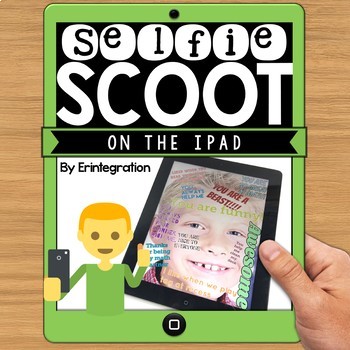
At Washington Elementary today, we played the Selfie Scoot iPad game in kindergarten, 1st and 2nd grades, and it was so much fun! This is a product I purchased from Erintegration's Tpt store for $3, and it was worth the money. It's a great idea, made simple by printing and following her step by step instructions. And a time saver for me, to not have to create these resources on my own! Yay, Tpt!
Tuesday, May 10, 2016
DoInk Green Screen + Seesaw = Awesomeness!


Subscribe to:
Posts (Atom)