Friday, October 2, 2015

App Smashing a Class Dot Book!

In some kindergarten and first grade classes this week, we participated in International Dot Day (a little late, LOL) by creating our own class dot books.  Dot Day is inspired by Peter H. Reynolds' book The Dot, which is a wonderful book for encouraging creativity and confidence in being unique and working hard at something until you can be and do your very best.  The students loved this book and I was so impressed by their thoughtful reflections after reading the story.


Once we read the book, we used the FREE app Doodle Buddy to create our own dots and sign our name (just like Vashti in the book).  In one first grade class, we used the typing feature in the Doodle Buddy app to type in what is the thing they were going to work really hard at doing their very best and their answers were great: reading, writing, art, soccer, etc.


After the students created and saved their creations to the camera roll on each iPad, I used my new magical best friend, AirDrop, to quickly and easily transfer these creations onto one iPad.  You can access AirDrop by swiping up from the bottom of your iPad and opening the Control Center.  Turn AirDrop to "everyone" (otherwise, the "dropper" will need to be in your contacts).


We then "app smashed" these drawings into a class book using one of my all time favorite apps, Book Creator.  You can get a limited free version of Book Creator (that I think allows you to make one book) or you can buy the paid version for $4.99.

This app is really easy to use, and allows you and your students to create amazing books that can be published to iBooks.  After I placed the images into the class dot book, I was able to once again use AirDrop to send the books to each student's iPad - the book is now in their iBooks to be read during center time, reading time, whenever!  So cool!  The book can also be shared with parents who can open the book in their own iBooks.

Click the image below to download a copy of the book created by Mr. Anderson's first graders.  Open the link on any device that has iBooks, and you'll be able to open and read it.  


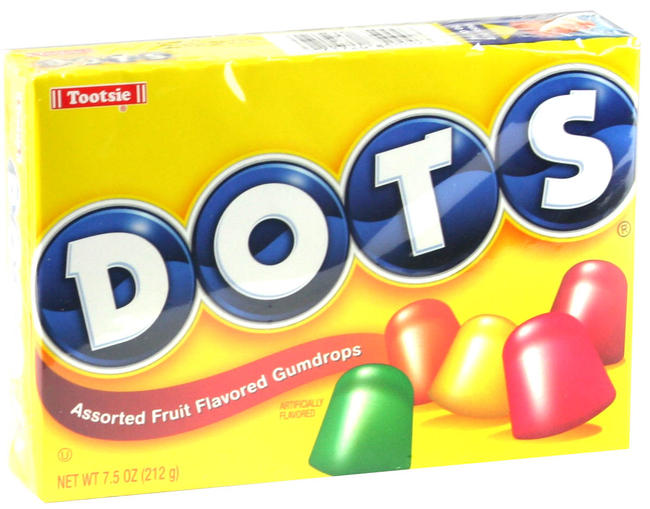
Of course, this lesson is made even better when you bring the kids boxes of Dots candy to enjoy while they're working.  They will then declare that you are the "best teacher ever!" even though they have only known you for the last 30 minutes.  :)  #candypower
Thursday, October 1, 2015

Storybots HUUUUGE App Update!

We have some great things happening in the StoryBots Universe that we want to share with you. We hope you enjoy them!
View in Browser
StoryBots
 
A message from Evan & Gregg Spiridellis
Founders of JibJab and StoryBots
 
Hi Traci,

We’re writing today to thank you (profusely!) for your support and to let you know about two super exciting changes coming to the StoryBots universe:

A HUUUUGE APP UPDATE!
The StoryBots Starring You Books app for iPad has now been transformed into the ULTIMATE all-in-one player, jam-packed with more than 200 videos, books, games and more. This puts the vast and mighty StoryBots universe right at your fingertips, meaning even more learning and fun for your kiddos -- and more guilt-free screen time for you! Download the app here!

WE'RE IN SCHOOLS!
We are thrilled to announce the upcoming launch of StoryBots Skills, a wildly fun, Common Core-aligned series of math games and lessons that is spreading to kindergarten classrooms across the world. The best part: there’s absolutely no cost to schools, and it’s all thanks to your continued support! Stay tuned to find out how to get StoryBots Skills in your kindergarten class for free.

Thank you again for supporting StoryBots. We are 100% AD-FREE, which means we are 100% PARENT-SUPPORTED. We couldn't make any of this stuff without you!

Evan & Gregg Spiridellis
Dads, Brothers, and StoryBots Co-Founders

Installing Fonts on your MacBook

I just had this question and thought I would write up a quick post about it, in case anyone else is wondering how to do this.  There are so many awesome fonts, but it's hard to figure out where to install them on your computer once they've been downloaded.  I tinkered around with this last year and figured it out (yay!) and was so happy I did - it's so fun to use different fonts in your newsletters, worksheets, etc.

I found this great, straight forward tutorial online at FontSpring.  It lists the steps and has a short video.  This should help you install fonts, but if you have any trouble, let me know and I'm happy to help.  Remember to close all applications first - the fonts won't install until you restart the applications you are trying to use them on.  Click the image below to view the instructions.


Friday, September 25, 2015

Global Read Aloud 2015!


Global Read Aloud 2015 is almost here!  The official kick off is October 5th, so there is still plenty of time to register and join in the fun.  This is an amazing project for teaching your kids that they live in a connected world.  The goal of this project is to join classrooms across the globe through the shared reading of a book.  The book choices for this year are shown above, and if you click the image you can visit the Global Read Aloud site with all kinds of info.

Participating in GRA with my kindergarten class was awesome and opened up a whole new world of collaboration and tech integration for my classroom!  I learned how to use Edmodo, Skype, Twitter, Kidblog to connect with other educators and classrooms.  My students LOVED Skyping (is that a word?!) with other classes and sharing what we loved about the books from the GRA author study. We continued these connections long after the GRA was over, learning about what kindergartners do in other parts of our country.  So.  Stinking.  Cool!  I loved gathering awesome learning ideas from other educators that were connected to these books we were reading, and having examples to share with my students.  I cannot say enough about this project and how grateful I am that my friend Desiree Caskey suggested I give it a try!  One of the things I will miss about being in the classroom this fall is that I won't be able to participate in GRA 2015!

So ... it's up to you!  Let's go, Billings!  Connect with other classes in the district, the state or the country by reading stories from this year's author study of Amy Krouse Rosenthal (these books look awesome for primary) starting with Chopsticks!  If you teach older kids, you can click here to see the 2015 books for the age group you teach.

You can find lots of information on the GRA site, but you can also follow its creator Pernille Ripp on Twitter @pernilleripp and Tweet to the hashtag #GRA15.  Or email me!  Yay!

Friday, September 18, 2015

Cool Apps to Check out Today!

Indian Education for All is a strong component of our curriculum in Montana, and we as teachers are always searching for resources to integrate this into our teaching.  In Mrs. Grimstad's kindergarten yesterday, I learned about this cool app:
Wonderful way to provide interactive, engaging learning of the Crow culture into your classroom. Thank you to Mrs. Grimstad for sharing!

Also, in the Free App Friday email I receive, I noticed a series of phonics apps that are free for a short time.  I have had many teachers ask me about reading apps with stories for children.  This one is free and has many great features for emerging readers.
If you click the image above to visit the iTunes preview page, you will notice a link in the righthand corner that says "View more by this developer."  
There are several other "apps gone free" that focus on sight words, word building and reading skills. Check them out!  And if you haven't already, CLICK HERE to visit the Smart Apps for Kids page and subscribe to their awesome list.

Wednesday, September 16, 2015

Kidblog in 1st grade

Mr. Anderson's first graders are off to a great start using Kidblog as a digital portfolio of their work. We introduced Kidblog whole group (this can be done using iPads, Chromebooks or Macbooks) and he has since introduced Kidblog into literacy centers.  Students work on writing (creating a story, posting reflections after a Lead 21 differentiated group lesson, etc) and post to Kidblog at one of his iPad centers.  At another iPad center, they will engage in word work using apps like Writing Wizard, Word Wizard, Sight Word Ninja and then take screenshots of their work and post to Kidblog.  This will build their digital portfolio, which can then be shared with parents, as well as classroom connections (other classes using Kidblog).  It also creates a really helpful portfolio of student work that Mr. Anderson will be able to use as he is analyzing student progress and growth.

Yay, Kidblog!  Great job, Mr. Golden Apple and your amazing Golden Firsties!  :)

Here are a couple of examples from his students:

There is a previous post on my blog about Getting Started with Kidblog, if you're interested.  You can also check the Kidblog website resources for some great tutorials.  You can also invite me in to help you get started - I love using this tool and I am happy to help classrooms incorporate it into their classrooms.  It is also nice having an extra person in the room the first couple of times you are walking through this process with your students!

Tuesday, September 15, 2015

Feltboard in Ms. Oringer's 1st grade & Padlet in Mrs. Scheafer's 2nd grade

Loved spending time in Ms. Oringer's classroom today, where we discussed iPad expectations with her 1st graders and then gave them time to use the Feltboard app.  This was an opportunity for her students to spend time getting to know how to navigate the app, with the task of making a picture of themselves and using the letters to write their names.  Ms. Oringer's kids worked so hard and stayed on task for this lesson.  I was impressed!

Feltboard has a lot of cool features that teachers can utilize for a variety of literacy, math, social studies and science lessons.  I can't wait to post more ideas for you to see!


I also loved spending time in Mrs. Scheafer's 2nd grade, helping them use the tool Padlet to record nouns.  These kids were awesome, too!  Seriously, I am so lucky to get to meet so many amazing kids and teachers every day!

Padlet is a tool that can be used on computers or tablets, and it is a big collaborative space, or wall where students can contribute their ideas.  In Mrs. Scheafer's room, we started a new Padlet for the nouns and gave students a QR code to scan with their iPads.  The QR code took them into the Padlet, where they had to tap the screen and add their name, their noun, and a picture of their noun.  


They worked really hard, learning how to allow camera permissions and work around problems when tech doesn't work quite the way it should.  We said what Pete the Cat says: "It's all good!"  This was a great project that Mrs. Scheafer thought of and I was happy to help her with it!  We also brainstormed an idea to use Popplet for a similar activity: have students make a popple for each category of nouns (person, place or thing) and then have them add examples to each of these categories.  


They could add drawings or pictures to each of these nouns, as well.


Monday, September 14, 2015

Constitution Day is September 17th!

A wonderful 2nd grade teacher asked if I knew of any fun ways to integrate technology into Constitution Day learning.  I had fun brainstorming a few ideas for her, and I thought I would share them with you all.

There is a good, short video on Time for Kids that you could show your students for some background knowledge.  

I really like this idea:


How cute is that?  It would be great if you had a copy of the book We The Kids by David Catrow. It would be fun to start this as a collaborative document, using a tool like Padlet.  Have each student contribute their idea of what it means to be a good citizen.  Then transfer their ideas to paper and have each student sign the "Class Constitution".  So cute!

I also found this website with some good resources.  I doubt it will work from their iPads, but it could be fun to share bits of it whole group.  Lots of information.  If students can work independently from MacBooks or ChromeBooks, they could read the information and take the accompanying quizzes.

It would also be cute to have them do some kind of art project (maybe make a flag like this one):

This is simply made from cutting pieces of construction paper and gluing to a white piece of construction paper, then adding white fingerprint "stars".  ​You could then have students take a picture of the flag with an iPad (or a picture of each of them holding their flags), and upload into an app like Skitch , Pic Collage or Educreations - anywhere they could add text to their picture and label it or write what they think a good citizen is.

If you're working from a Chromebook or MacBook (this next idea needs Flash so it won't work on iPads), it would be fun to use the Read, Write, Think Theme Poem creator and have them use the flag outline to create a poem about citizenship or patriotism.
I hope these ideas are helpful, or inspire some other awesome Constitution Day or patriotic lessons. If you try anything in your class, please share with me so we can post examples and ideas on this blog for others to see!

Happy Teaching and Tech-ing!  

Great Post Featuring Digital Citizenship Resources

I found this post on the blog Comfortably 2.0, and it lists several fun resources for teaching digital citizenship to your students.  The tools listed include books, short videos and websites.


If you search the other blog posts, you'll also see a post Mr. Badura wrote about talking with students, not at students when you have a conversation about digital citizenship.

Sunday, September 13, 2015

iPad Rules Posters

A lot of teachers have been asking about setting classroom expectations for iPad use in the classroom. I used this cute poster from Heidi Songs in my kindergarten classroom.  Click the image below to read her post and to find the FREE download of this poster.

I also just found these and they are FREE on Tpt.  Absolutely adorable and they cover many useful expectations.


I always began by discussing the expectations with my kindergartners, and then working together to create a set of iPad Learning Community Guidelines.  I love Ms. Zigmond's idea of collaborating and recording these ideas on a Popplet!  Click the image below to read her post on beginning the school year with iPads.

Don't hesitate to start allowing your kids to learn and create in your classroom using iPads because you're nervous about getting started!  Use one of these FREE tools or get in touch with me and I will help you get started.  Let's make some #happyclassrooms!


Happy, Sad & Silly with Pic Collage & Flipagram

Ms. Conrad just learned how to make a classroom blog, and she is off to a great start.  Her students are doing so many fun things in first grade, and I love having a peek into her classroom through her blog.

I also loved this idea she had, to discuss moods and feelings using Pic Collage.  Pic Collage is a free app for iPad or iPhone, where students can add text to photos and make fun collages.  There are so many great ways to use Pic Collage in the classroom, but I love how she utilized it for this project. She shared the students' collages using another free app called Flipagram.  Flipagram allowed her to make the Pic Collages into a slideshow that she could share on her blog.  She said using both of these tools let her make something quick and easy and share without even needing a computer!  Awesome!

Enjoy!

Thursday, September 10, 2015

Super Centers with iPads - 3 night workshop

The first session of Super iPad Centers is full - click the image to sign up for Session 2 October 21, 28th and November 4th from 3:00-4:00pm. OPI renewal units available.

Wednesday, September 9, 2015

Gimme a Brain Break!

Gimme a break … A BRAIN break!  Research shows that taking brain breaks throughout the day facilitates student engagement and learning.  There is a wonderful article on this blog explaining brain breaks and why they are effective.  One of my favorite ways to incorporate brain breaks into my kindergarten classroom was using GoNoodle!  

gonoodle_0.jpg

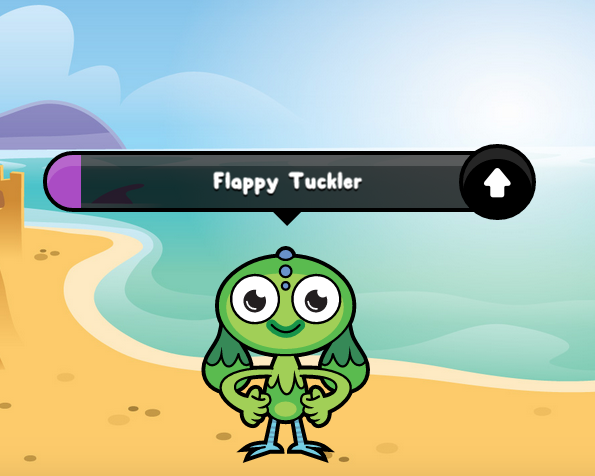
GoNoodle has tons of FREE activities to help kids focus - you can choose from calming, energizing, interactive games, core aligned activities and more depending on your class needs.  Your students pick a “champ” and then earn your class champ points every time they participate.  They love this!  Here is our class’ champ, Flappy Tuckler.

Screen Shot 2015-09-09 at 11.09.24 PM.png

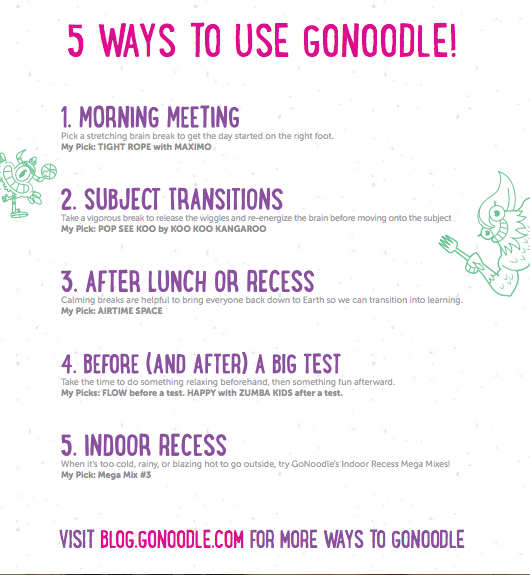
This blog post has tons of ideas on how to incorporate GoNoodle into your classroom.  I also love these 5 quick ideas to start reinvigorating your students and squeezing in a few minutes of brain breaks throughout your day.

Screen Shot 2015-09-09 at 11.13.38 PM.png

GoNoodle supports teachers with awesome resources - check out all of these free, fun printables to get your classroom GoNoodle-ified!  Ready to check it out yet?  If so, visit this link and start GoNoodling!

ClassDojo!

If you’ve never heard of ClassDojo … then you are in for a treat!  ClassDojo is an awesome classroom management/communication tool and it’s FREE!  ClassDojo allows you to easily engage students by providing immediate feedback and to keep parents in the loop.  It is super fun and can be customized to meet your classroom’s needs.


To find out more about ClassDojo, click the image below to watch a short intro video.  After watching the video, visit www.classdojo.com and you can quickly and easily set up your teacher account.


Screen Shot 2015-09-09 at 10.40.28 PM.png


ClassDojo supports teachers by providing tools, tips and advice from other teachers on their blog.  Check out their Teacher Resources page to download a teacher info sheet, or to read about ways other teachers are using ClassDojo in their classrooms.


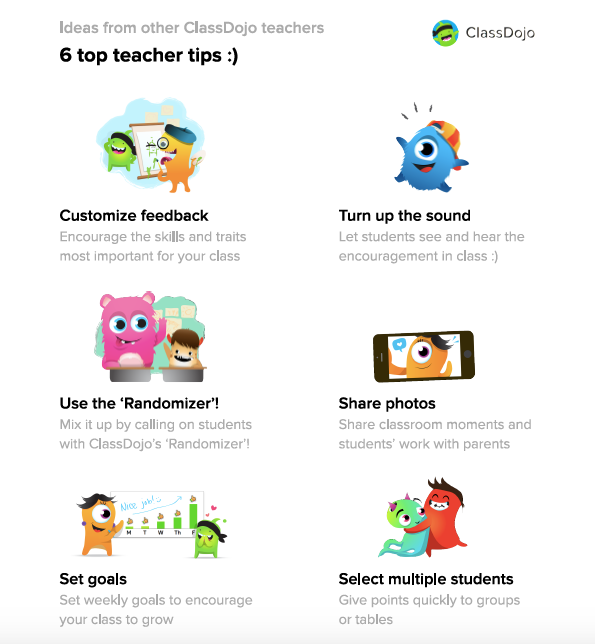
Here are teachers’ top tips for using ClassDojo: (click the image to download the document)
Screen Shot 2015-09-09 at 10.33.48 PM.png
The parents in my kindergarten class LOVED being connected to their students and our classroom through ClassDojo.  It is a quick, easy and fun tool.  Give it a try!